01 / 03
Edit PDF text
GoodPDF provides the best experience for editing PDFs on your own desktop. It will automatically detect the font, size, and opacity of the original text, so you can make edits easily.
Try GoodPDF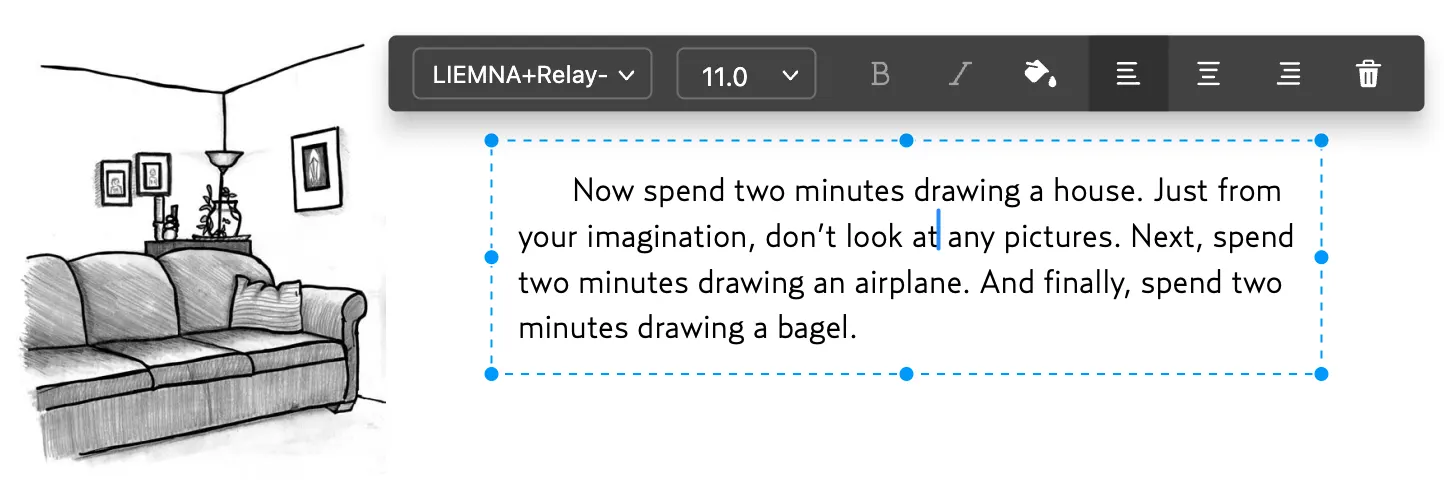
Edit a PDF the way you want. GoodPDF detects the original font, size and opacity so edited text blends in, and lets you add, replace and move images.
01 / 03
GoodPDF provides the best experience for editing PDFs on your own desktop. It will automatically detect the font, size, and opacity of the original text, so you can make edits easily.
Try GoodPDF02 / 03
With GoodPDF, you can add, replace, and move images in PDF documents. Edit images the way you want.
Try GoodPDF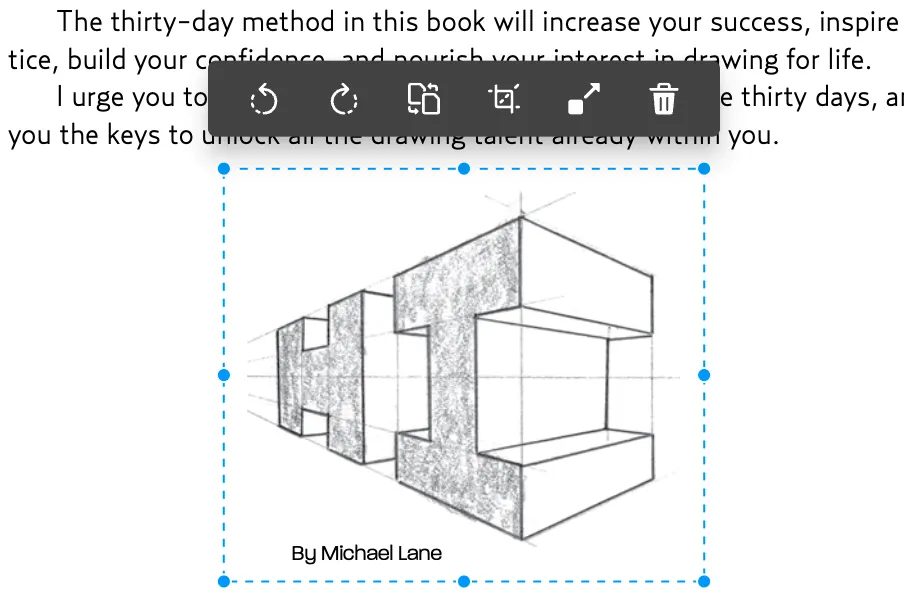
03 / 03
Now linking any part of the text to a different page or a website is easy. Moreover, links can be added to the images.
Try GoodPDF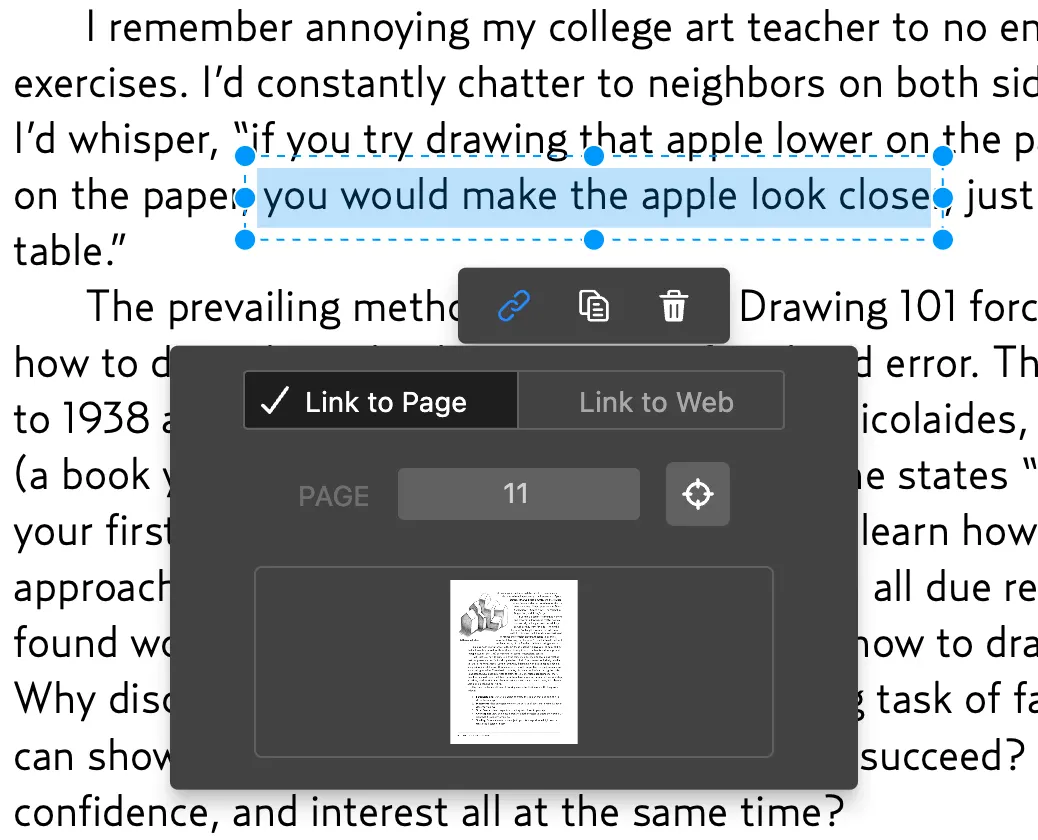
GoodPDF is designed to let users edit PDF files on their computer without relying on cloud services or browser-based tools. The application’s PDF rendering and editing engine is built into the app itself, so all operations—including edit PDF tasks—occur locally. This structure means there is never any upload step or roundtrip to external servers. The software handles finished PDFs as they are, making it possible to open, modify, and save changes directly to the file in place.
When you use GoodPDF to edit PDF text, images, or links, the program works inside the existing structure of the document. There is no conversion to other formats such as Word or image files. Editing takes place within the PDF format, maintaining the original layout and minimizing changes to other elements in the document. This results in a straightforward process: you open a file, make changes, and save.
A common issue when users edit PDF documents is inconsistency in text appearance. GoodPDF addresses this by matching the original font, size, and opacity of the text segment being edited. When you initiate an edit PDF operation, the application analyzes the selected text object and identifies its exact styling. Subsequent changes remain true to these properties, so the modified content blends in with the original.
This font-matching capability applies whether you add a single word, correct a typo, or adjust entire phrases with the edit PDF tool. The software does not introduce arbitrary font substitutions or alter the line spacing, which often happens with tools that convert PDF into other formats before editing. As a result, documents appear consistent and professional after each edit.
Beyond text, GoodPDF lets you edit PDF files by selecting and replacing images directly. The app’s engine reads finished PDF files and maps out images as discrete objects. Users can select an image, delete it, resize, or replace it with content from their computer. The changes are saved back into the PDF, ensuring the update remains in line with the document structure.
Link modifications follow a similar approach. With the edit PDF tools in GoodPDF, you can adjust target URLs, create new clickable areas, or remove unwanted hyperlinks. The application maintains the original link appearance and boundaries by referencing the document structure internally, so changes are contained and predictable.
Many online or cloud-based options require you to upload files to remote servers in order to edit PDF content, introducing delays and privacy considerations. Some tools work by converting the file to Word or images, then converting it back to PDF, which causes formatting losses and font mismatches. These approaches can also produce stray lines, altered margins, or unexpected reflow of content.
In contrast, GoodPDF keeps the edit PDF workflow on your device at all times, working on the existing PDF structure. This avoids issues like ads, watermarks, or unexpected font changes, and gives more predictable results regardless of document complexity. There is no need to wait for uploads or downloads, and files are never forced through intermediate formats before saving.
To demonstrate how you might use GoodPDF to edit PDF content, consider a document where a sentence contains a typing error. After opening the file, you activate the text edit the file tool, select the text block, and make the correction directly in the editing view. The application preserves the font and size, so the revised text looks identical to the surrounding material.
Once you complete the change, you simply save the file, and the work on the file process is finished. There is no export or conversion step, and you do not have to re-import the file into another tool. The content is now updated and ready to share or print, with no alteration to layout or design elsewhere in the document.
GoodPDF supports desktop environments only, with editions for macOS 12.5 and later, and Windows 10 version 1809 and above. All edit PDF tools are included in both platforms. One licence covers up to five devices, allowing you to work fluidly between computers. Installation is straightforward, and updates are provided through the app.
GoodPDF is free to use, and the free version includes every feature, including the ability to edit the document text, images, and links, without requiring an account or prior sign-up. Files saved with the free version carry a small watermark. GoodPDF Pro removes it with a single one-time payment, with no subscription; activation is managed via a licence key supplied after purchase.
In addition to the core edit PDF function, GoodPDF offers nine other tools in the same application. These tools include annotation, signing, document protection, file compression, and creating or combining PDFs, among others. All capabilities are accessed through a unified desktop interface.
Each tool operates directly on the PDF file stored on your device, without cloud processing or intermediate conversions. Whether you annotate, add a signature, or make the change pages, the process follows the same principles: modifications stay within the document’s existing structure and are saved in place without format changes.
GoodPDF’s design as a fully desktop-based solution means that every edit PDF action is performed using the software’s local engine. The approach keeps editing efficient and transparent, as there are no dependencies on external accounts, network speeds, or file size limits imposed by remote processing.
The result is an approach to edit the file documents that focuses on stability and fidelity. All operations maintain consistency with the original document's appearance and structure. Whether making text changes, updating images, or altering links, the experience remains predictable, with edits that are easy to control and review.