Sign PDF Document
Sign agreements, contracts and invoices on your own desktop. Place your signature anywhere in the PDF and save the signed document — no printing, no scanning.
Sign PDF files on your desktop
GoodPDF enables you to sign PDF documents directly on your desktop computer, without resorting to online services. When you open a file to sign PDF agreements, GoodPDF works entirely on your own device, using its integrated PDF engine. There is no transfer of your documents to another server. By managing everything locally, it is possible to handle sensitive agreements with added confidence in the file's privacy throughout every stage as you sign PDF forms or contracts.
The application is fully native for both macOS 12.5 and later, as well as Windows 10 version 1809 and newer. Regardless of your operating system, the process to sign PDF files remains consistent and straightforward. There are no browser plugins or web-based dependencies; everything required to sign PDF content is built into the software.
Drawing or importing signatures
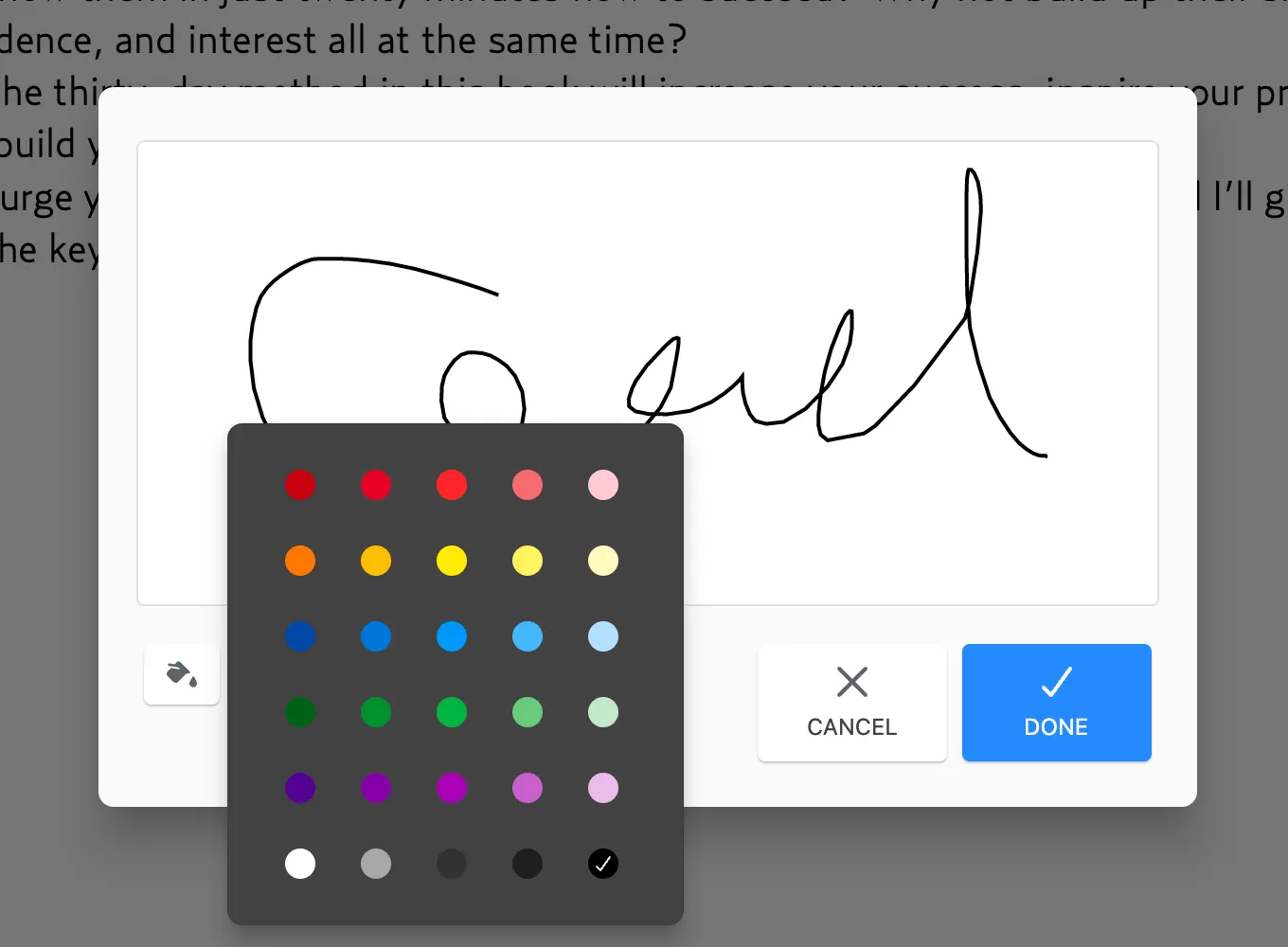
When you need to sign PDF documents, you can do so by either drawing your signature using a mouse, trackpad, or compatible stylus. GoodPDF captures the stroke details smoothly and embeds them as part of the PDF content. This drawn signature becomes an object within the document, maintaining precise placement when you sign PDF agreements, so it appears as intended on every device and printer.
Alternatively, you may use an image file of a handwritten signature. The application allows you to import PNG or JPG graphics and adjust their scaled size, opacity, and position before you sign PDF forms. The imported signature image is handled by the same engine that ensures it is rendered crisply and blends well with other page elements, avoiding any quality loss whether printed or viewed on screen.
Consistent editing with original fonts
One consistent issue with other tools arises in text edits adjacent to where users sign PDF files. Fonts often become mismatched, leading to distractions or doubts about authenticity. GoodPDF’s approach matches the original font, size, and opacity wherever you sign the document agreements and make textual changes. The app uses embedded font data from the document itself, eliminating the font substitution errors common with converters or cloud editors.
This fidelity is particularly important when forms or contracts require annotations alongside the signature. As you place the signature documents, updated text remains visually indistinguishable from the original, both in digital and printed versions. GoodPDF manages these details automatically, so you do not need to adjust styles manually each time you sign the agreement materials.
What commonly goes wrong elsewhere
Many tools that promise a way to sign PDF agreements impose additional steps, such as uploading your file, converting it to another format, or requiring it to be rerendered. These methods can cause layout shifts, image degradation, or security concerns, especially if signing PDF files with legal or financial content. Browser-based applications further depend on an internet connection and may introduce restrictions or unpredictable quality.
GoodPDF does not upload, convert, or rerender your files externally. The application handles every action to add the signature contracts directly in the finished file. Because no conversion to formats like Word or image files occurs, layout and formatting remain unchanged. This approach prevents the misalignments, invalid characters, or watermarks often introduced by alternative solutions that do not sign the document documents in place.
A step-by-step signature walkthrough
To sign PDF files using GoodPDF, start by opening the desired agreement with the application. Navigate to the signature tool in the toolbar. You can then choose between drawing your signature on screen or importing an existing image. Adjust its scale and orientation as needed. Drag the signature object onto the preferred location within the document to place the signature pages precisely where required.
If you need to add a date or extra annotation, switch to the text tool before or after you sign the agreement sections of your file. GoodPDF ensures edits remain accurate to the document's original style. Once satisfied, simply save the changes. Signed copies will retain all embedded information, including the signature and any new annotations, ready for sharing or printing after you add the signature paperwork.
How licensing and the free version work
GoodPDF’s licensing allows you to sign PDF forms on up to five macOS or Windows devices with a single user licence, bought with one payment and no subscription. The software operates the same on both platforms, so you only need one licence whether you primarily sign documents on a Mac at home or a Windows PC at the office.
The free version includes all features, so you can place signatures and use the editing, annotation, and organizational tools with no time limit. No account creation or sign-up is needed. Files you save carry a small watermark until you add your licence key within the application, after which signed PDF files come out clean.
Editing, annotating and signing together
Beyond the dedicated feature to sign PDF agreements, GoodPDF includes nine additional tools for day-to-day PDF work. You can edit text, markup or highlight clauses, organize or merge multiple signed PDF files, and insert or rearrange pages as necessary. Each function operates directly on the file, preserving security and layout integrity as you sign the agreement forms and perform related modifications.
GoodPDF’s built-in engine keeps annotation layers, links, and form fields functional when you add the signature documents. This means you can continue to highlight, underline, or add bookmarks to agreements even after adding your signature, without affecting signature positioning or document legibility. All edits and signature placements remain embedded in the finished PDF, with no additional conversion required to maintain formatting after you sign the document files.