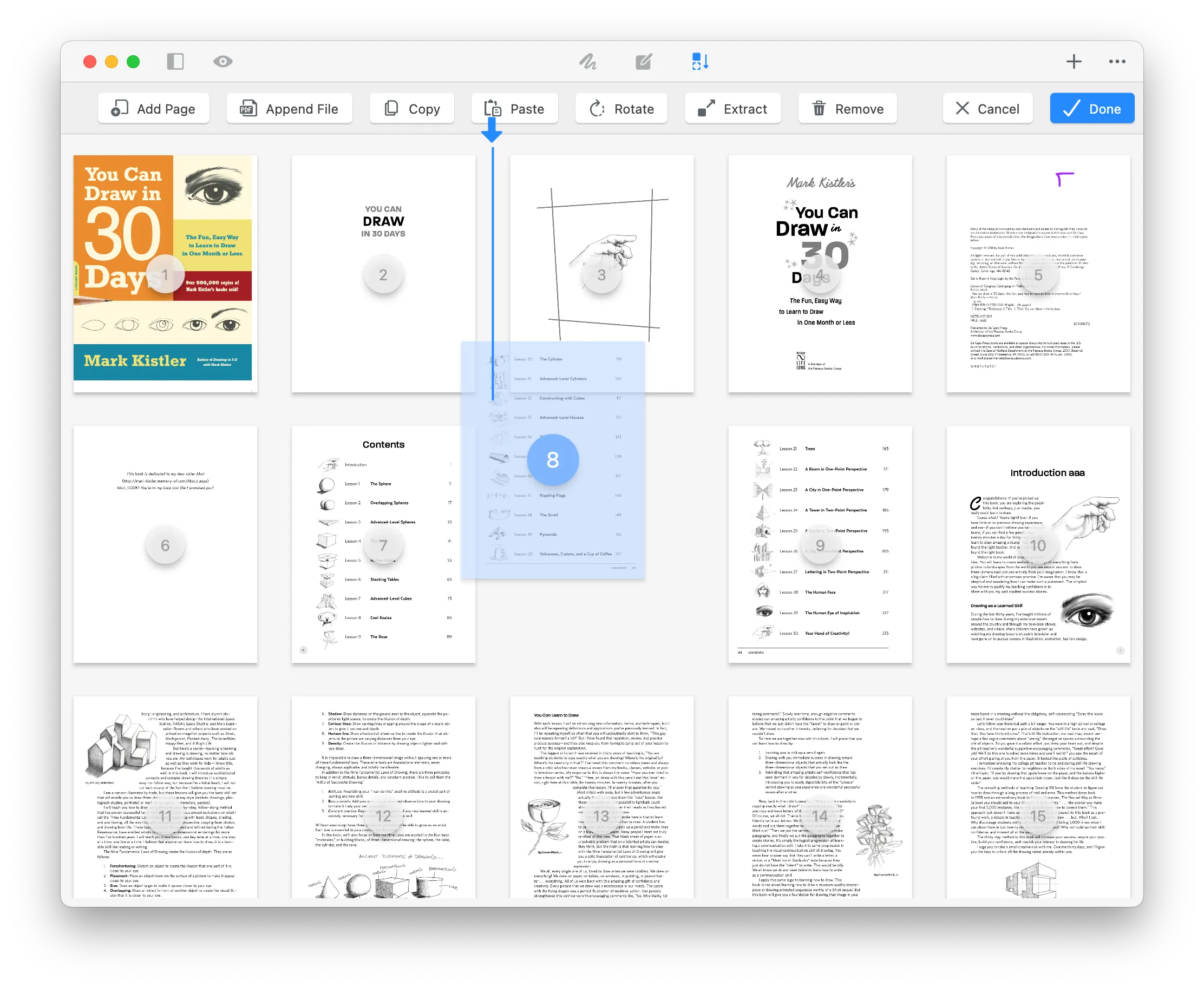
Overview of PDF page organization
The need to organize PDF pages arises in many scenarios, from rearranging scanned contracts for clarity to reordering chapters in a digital manual. GoodPDF provides a set of tools aimed at handling these situations natively on both Windows and macOS. When you organize PDF pages using GoodPDF, every action is performed directly on your local files, accessed and saved on your computer, without uploading or converting the document.
Choosing to organize PDF pages in this way means edits remain true to the PDF format. GoodPDF works with the finished file as-is, applying the edits in place, with no intermediary steps such as exporting to another format or using an external service. This direct approach minimizes disruption and preserves the appearance and functionality of the document.
What often goes wrong elsewhere
Many other tools that offer to organize PDF pages introduce unnecessary complications. Web-based services may require file uploads, which can take time with larger PDFs or slower connections, and can raise questions about privacy. Even some desktop applications convert files to images or other formats to handle page operations, which typically breaks fonts and layout when reconverting to PDF.
With some tools, editing the file can result in font mismatches and changes to text clarity. When users move pages around through these methods, the final document often loses its professional appearance. GoodPDF operates differently: it manipulates the actual PDF structure in place, ensuring the font, size, and opacity are preserved throughout any page organization activity.
The mechanics of organizing pages
To organize PDF pages in GoodPDF, you begin by opening your PDF into the application. The dedicated page organizer panel displays visual thumbnails for each page. Here, you can select single pages or groups of pages and change their order by dragging them to the desired location. Changes are reflected instantly in the thumbnail overview and, once saved, are written directly back into your file.
In addition to reordering, GoodPDF allows you to rotate pages one at a time or in groups. When you sort the pages by rotating them, the application modifies the display settings for those pages while retaining all text and graphical content exactly as it was. Pages can also be deleted, cropped, or duplicated from within the same interface, streamlining any multi-step organization process.
A concrete walkthrough: Reordering and combining
Suppose you want to organize PDF pages by moving a table of contents to the front and merging pages from another document. With GoodPDF, open your target PDF and another PDF source. The page organizer panel will allow you to drag the needed pages from the secondary file directly into your current document. Arranging the order is done by simply dragging thumbnail representations to the correct sequence.
After you rearrange the pages in this fashion, simply save your file to lock in the new arrangement. At no point does the application alter the fonts or compress your content unnecessarily. Visual and content fidelity is maintained, because GoodPDF edits the actual PDF data structures without external conversions or temporary file formats.
Page deletion and cropping details
To organize PDF pages by removing unwanted sections, you can highlight and delete any selection of pages within the document. This action permanently removes chosen pages from the PDF; the original file will be updated when you save. If certain pages require precise presentation, cropping tools allow you to trim margins or content edges, refining the document without altering other material.
GoodPDF’s approach ensures that when you reorder the pages through cropping or deletion, the results do not disturb the surrounding content. Page numbers and navigation remain functional, and the changes take effect immediately upon saving, with no loss in quality or appearance.
Supported devices and licensing information
You can organize PDF pages using GoodPDF on any device running macOS 12.5 or later, as well as Windows 10 version 1809 or later. A single license covers up to five devices across both platforms. Whether you use a Mac, a PC, or both, you can move pages around without switching apps or licenses.
The licensing model is straightforward. GoodPDF is free to use with the full toolkit, including every function to sort the pages, and saved files carry a small watermark until you upgrade. GoodPDF Pro is a single one-time payment with no subscription and no account; activating it is done with a simple license key.
No uploads, accounts, or conversion steps
When you organize PDF pages with GoodPDF, there is never a need to export, upload, or sign in. All modifications happen within the application, operating on the file stored locally on your device. Because the rendering and editing engine is included with the app, your experience of organizing PDF pages isn’t dependent on internet connectivity or remote resources.
The absence of cloud-based conversion avoids the font changes or layout disruptions seen in other workflows. Whether your task is to rearrange the pages by rearranging, splitting sections, or combining files, every step is handled internally by the application, keeping your workflow self-contained and consistent.
Free version and updates
If you wish to organize PDF pages without paying anything, the free version of GoodPDF is fully functional. It lets you use every tool, including those for organizing pages, without creating an account or registering personal information. When you want clean files without the watermark, upgrading is handled by entering a license key obtained from the purchase process.
All users who reorder the pages benefit from ongoing updates. GoodPDF supplies updates through the application, delivering improvements to the page organizer and other components. You retain control over your data and workflow throughout, as all functions remain within your desktop environment.