01 / 02
Set/Remove Password
If there's a document with some financial statements, you don't want everyone to see or use it without permission. That's when you need to password protect your PDF.
Try GoodPDF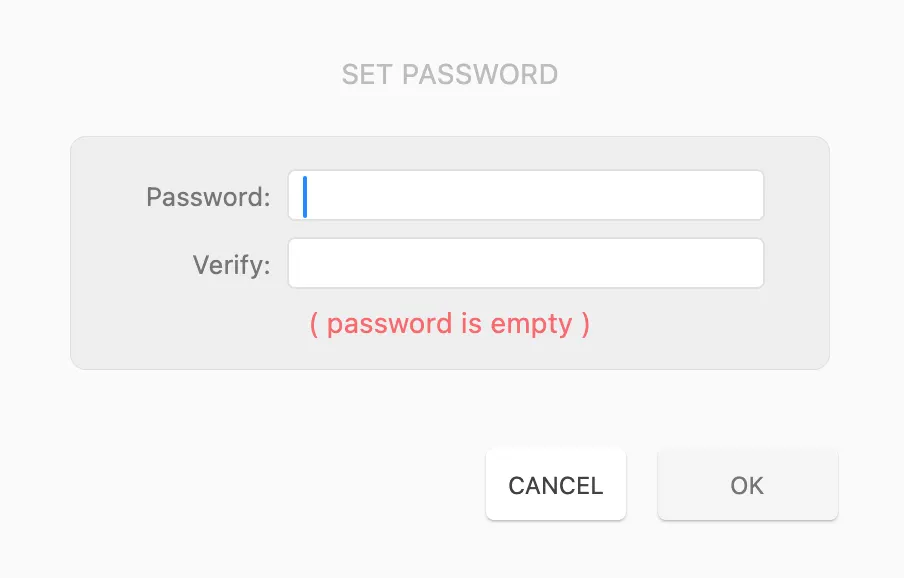
Set or remove a password on a PDF so financial statements and contracts stay private. Batch tools apply the same password to a whole group of documents at once.
01 / 02
If there's a document with some financial statements, you don't want everyone to see or use it without permission. That's when you need to password protect your PDF.
Try GoodPDF02 / 02
You could set or remove password for a group of PDF documents.
Try GoodPDF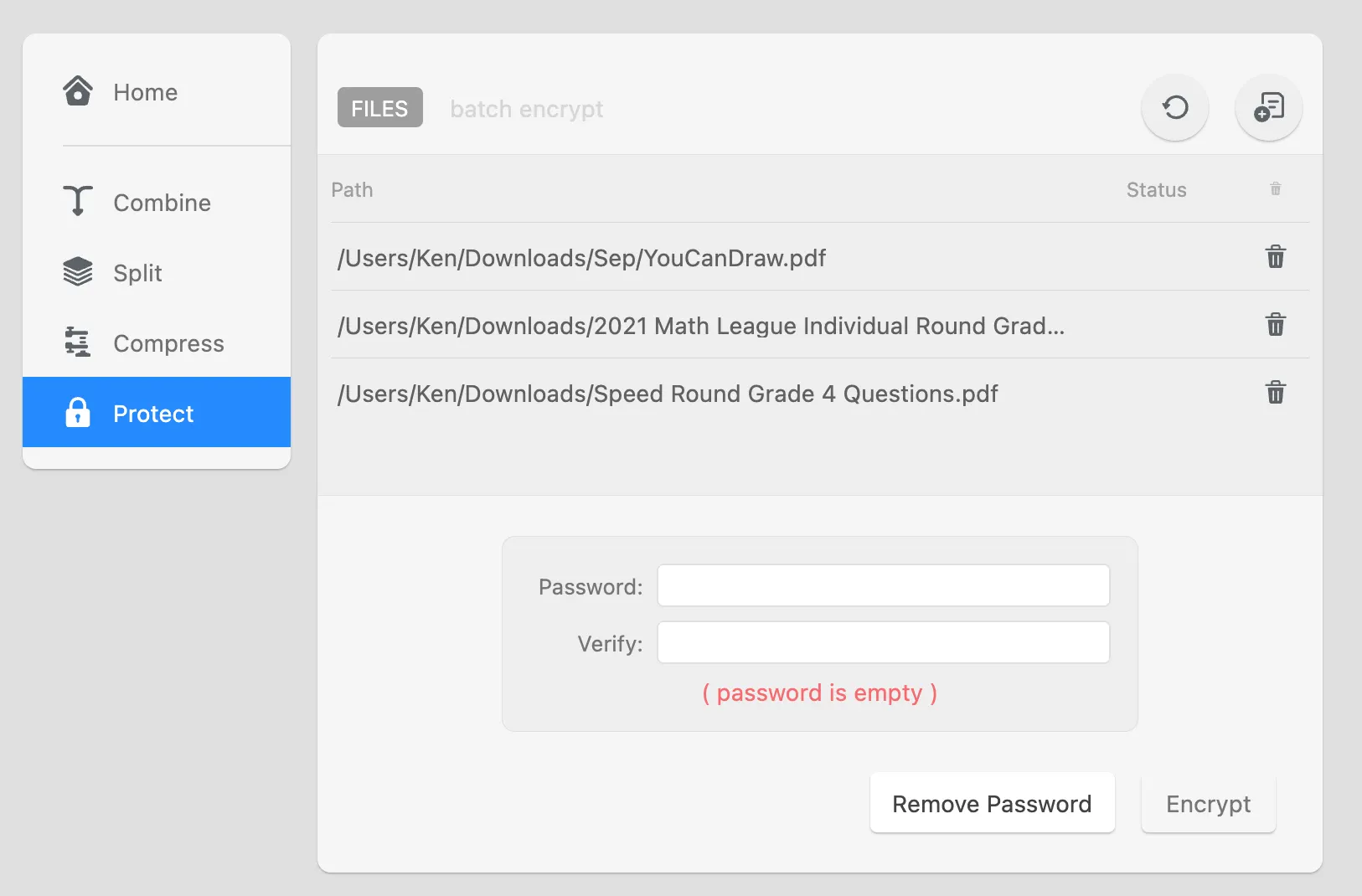
GoodPDF uses a built-in engine to password protect PDF files directly on your computer. There is no need to upload files to a website or cloud service. When you password protect PDF documents, the application applies encryption standards that are part of the PDF format specification. This covers both macOS 12.5 and later, as well as Windows 10 version 1809 and above, with the mechanism running completely inside the app.
To password protect PDF files, GoodPDF prompts you to choose a strong password and sets the required security permissions. The application edits the final PDF in place: it does not create a temporary copy or convert the document to another format. All protection settings, including password requirements and permission restrictions, are embedded into the existing PDF. This lets you lock the file documents while retaining their original structure and appearance.
When using GoodPDF, you can password protect PDF files without altering fonts, size, or opacity in the document. Any existing text or formatting remains unchanged after the protection is added. The edit engine matches fonts and formatting precisely, so the PDF continues to look as intended once you secure the file content. This approach avoids the problems often encountered with tools that flatten or covert PDFs during processing.
Many other applications that protect the document files might rasterize text or substitute fonts when adding security. GoodPDF preserves the integrity of the original document by operating at the PDF specification level. When you set a password materials with GoodPDF, no visual quality is lost and every detail is rendered exactly as before, with added protection layered on top.
Other tools designed to password protect PDF files generally rely on uploading your document to a remote service or use intermediary conversions. These steps can strip metadata, alter formatting, or create oversized files. In some cases, converting to alternative formats and then password protecting PDF exports results in missing fonts or security settings that do not follow the PDF standard.
GoodPDF avoids these issues by embedding the protection layer directly in the original file. When you lock the file files with this application, it does not create duplicates, does not require internet access for the operation itself, and does not alter the accessibility of text or elements inside the document. This direct editing method helps maintain consistency and compliance with common PDF readers and workflows.
To password protect PDF documents using GoodPDF, open the application on macOS or Windows. Choose the PDF you wish to secure and open it in the main window. Select the protection tool from the application's toolbar—each tool is clearly labeled. When prompted, enter a password, then set options such as whether to restrict editing, printing, or copying from the PDF. The app immediately applies these settings to the open file.
After confirming your choices, the application writes the new protection settings directly into the PDF. There is no save-as step; GoodPDF password protects PDF files in place. You can verify the protection by reopening the file or using the preview feature within the app. Each secure the file operation follows this immediate, local processing path, keeping the workflow contained within your device.
GoodPDF includes a batch tool to password protect PDF documents in bulk. Select several files or an entire folder, and apply the desired password and permissions with one operation. The engine iterates through each document, embedding password and restriction settings while maintaining the original file structure. Each protect the document task in a batch writes protections directly to the source documents.
The batch set a password workflow does not merge or split documents, nor does it convert files. Each PDF is secured individually, using the protection parameters you choose. Whether you need to lock the file invoices, reports, or statements for distribution, the application repeats the same direct process for every selected file. All processed files remain in their original locations.
When applying the password protect PDF tool, GoodPDF allows you to specify detailed permission settings. Along with setting a password to open the PDF, you can restrict printing, copying text or images, form filling, and modifying annotations. These controls are part of the PDF protection standard, meaning that permissions are enforced by compliant PDF viewers across macOS, Windows, and other platforms.
You enable these options as you secure the file documents, without needing to access separate settings dialogs. GoodPDF embeds these restrictions alongside the password in a single pass, so no secondary editing is required. This unified method results in stable, predictable permission enforcement for every protect the document operation.
Licensing for GoodPDF covers five devices, regardless of platform. When you choose to password protect PDF files with this application, the same licence works on both macOS and Windows as long as your systems meet the required OS version. Every feature, including the ability to batch set a password or customize permissions, is in the free version; a licence key, bought once with no subscription, removes the watermark from the files you save.
The free version offers access to every lock the file function. No account creation or sign-up is necessary. Install the application and run any of the ten tools—including secure the file—with no time limit. Activation is handled entirely through entering your licence key; the tools work the same in the free version as they do after purchase, without the watermark.
The GoodPDF application for password protect PDF operations uses a built-in engine that opens, edits, and saves documents locally. No upload or external service is used at any step of the protect the document process. All editing and protection settings are applied directly within the boundaries of your computer’s file system, using the internal renderer and editor.
While the app accesses the network only for optional updates, licence verification, and problem reports, all set a password actions are performed offline and do not require an internet connection. This means that file contents are not sent to a third party when you lock the file files using GoodPDF. The architecture focuses on transparent, local processing for every tool, including password protection.