01 / 01
Combine
Integrating PDFs is useful when you are conducting scientific research and need to merge a lot of statistical info from different sources into one PDF file.
Try GoodPDF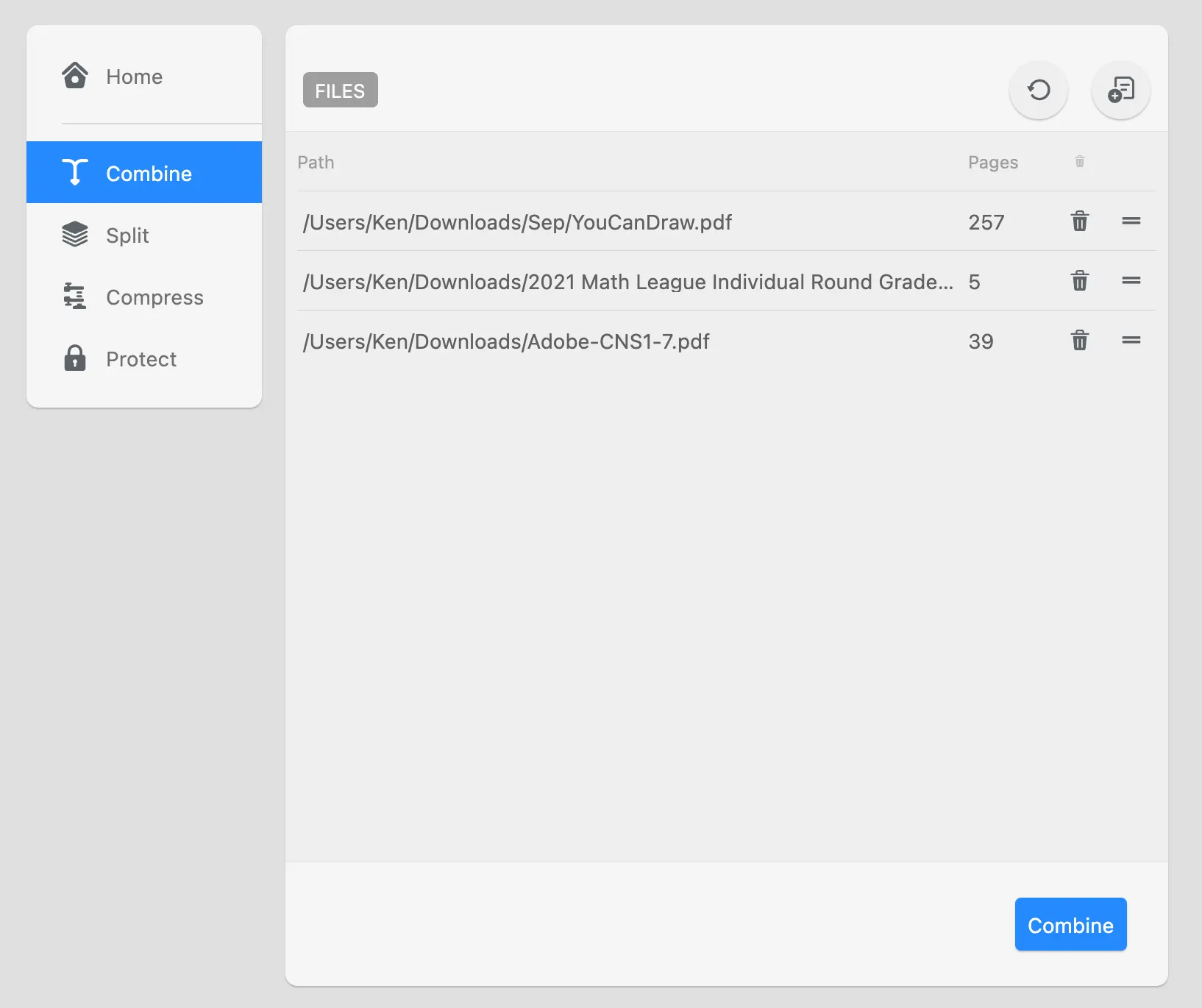
Merge several PDFs into one document — handy when statistics, charts and notes from different sources have to end up in a single file for research or reporting.
01 / 01
Integrating PDFs is useful when you are conducting scientific research and need to merge a lot of statistical info from different sources into one PDF file.
Try GoodPDFGoodPDF provides a way to merge PDF documents locally, using the application installed on your computer. The merge PDF tool is included in both the macOS and Windows versions. When users select documents to merge, GoodPDF processes all files using its internal engine. At no point is there any upload or external conversion required; the entire merge PDF process happens with the files stored on your own machine.
Multiple PDFs can be brought together by a simple selection in the GoodPDF interface. The software's merge PDF feature reads each file in its original format, then assembles them into a single document. This is not a roundabout conversion and does not depend on any intermediary format. The application itself manages font rendering, page order, and graphical consistency throughout the merge.
After launch, the merge PDF tool prompts you to choose any number of PDF files from your local folders. GoodPDF loads each selected document using its built-in engine. Because the merge PDF workflow stays local, original formatting is preserved, and the output reflects exactly how each page looked in the source files. Page orientation, size, and embedded fonts remain unchanged through the process.
Once files are selected, the software allows you to arrange their sequence. The merge PDF interface makes it possible to reorder documents before combining them. After confirming the desired order, a single click produces a new PDF containing every original page. There is no external process at any point; the combined file is immediately available on the computer.
Many other tools require you to upload documents before you merge PDF files. This introduces slowdowns, potential privacy risks, and inconsistent results. Online converters may re-encode documents, unintentionally alter fonts, or lose embedded images when they process the bring them together request. Variations between platforms can further complicate outcomes, especially with complex formatting.
Some applications export to formats like Word or images before attempting to merge, then convert back to PDF. This round-trip workflow often disrupts fonts, layout, or file structure. GoodPDF does not convert during the merge the files process. The app works directly on PDF files, maintaining original appearance and document integrity throughout every operation.
Suppose you have lecture slides, readings, and assignments in several separate PDF files. Open GoodPDF and select the merge PDF tool. Browse for your documents on your computer—drag them into the join the documents window, or choose them via the file dialog. The program previews each one as it's added to the list.
Arrange the order by dragging files up or down in the sequence. You can use the combine the files interface to check thumbnails, ensuring each section appears where you want. After choosing the final order, click the bring them together button. The combined file is created within seconds and can be saved right where you prefer. No registration or account is required to use the merge the files tool, and it works in the free version.
One central capability of GoodPDF's merge PDF tool is preserving fonts, opacity, and layout across documents. When you join the documents files, the application reads and writes every font and page property exactly as found in each original. This applies to multi-author compilations and documents with varied design choices. Each page in the merged PDF reflects its source.
Unlike tools that first break PDFs into images or text streams, GoodPDF's combine the files process functions on the underlying PDF structure. By using its internal engine, it keeps typefaces, transparency, and embedded graphics unchanged. The result is a merged PDF where each segment remains visually and structurally accurate to the originals.
With a single purchase, the GoodPDF license covers both macOS (version 12.5 or later) and Windows (10 version 1809 and higher) for up to five devices. Every feature—including the merge PDF tool—works in the free version, and a licence key removes the watermark from saved files. There are no recurring server or upload steps needed for core operations. Every bring them together function runs on the local computer, managed by the installed application.
Users can use every merge the files feature in the free version. The program does not require an account or sign-up for access. Once a licence key is entered, files saved with every tool, including editing, annotating, combining, and more, come out without the watermark, across both supported platforms.
GoodPDF specializes in direct PDF handling. The merge PDF operation can include any standard PDF produced from scanners, documents, or other editing software. If you wish to bring together documents from various sources, the program reads each as a PDF, merging all pages according to the sequence you set. The join the documents function ignores file-type conversions, focusing purely on PDFs without exporting to secondary formats.
Non-PDF files need to be printed to PDF first via system print options, ensuring compatibility. Once every file is available as a PDF, you can use GoodPDF to combine the files files regardless of their original creation method. This maintains consistency throughout the entire compilation, free from intermediate translation errors common to some web-based tools.