01 / 01
Compress
If you need to email your thesis with lots of diagrams, tables, images and tons of text pages with the very limited size of the e-mail, compressing your PDF file is easiest way to solve this problem.
Try GoodPDF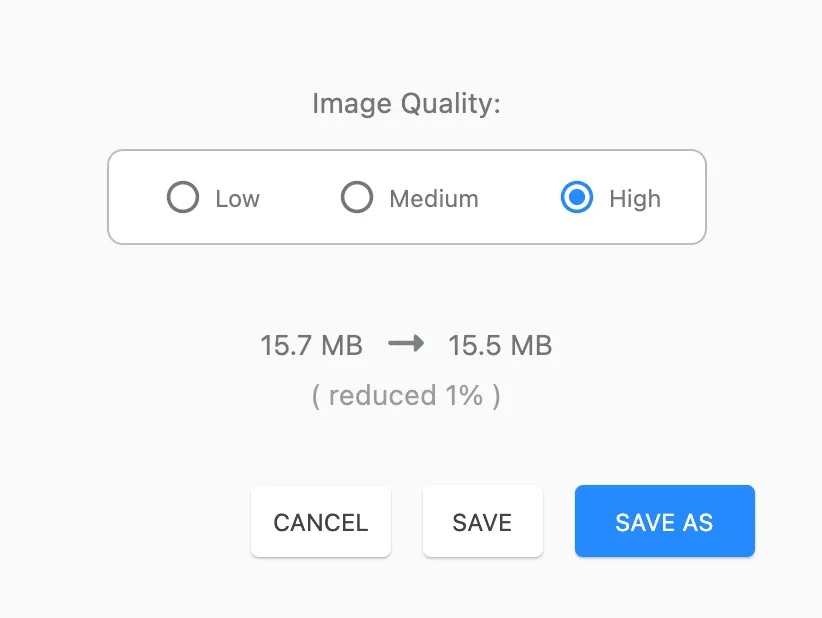
Shrink a PDF full of diagrams, tables and images down to a size that fits an email attachment limit, without uploading the file anywhere.
01 / 01
If you need to email your thesis with lots of diagrams, tables, images and tons of text pages with the very limited size of the e-mail, compressing your PDF file is easiest way to solve this problem.
Try GoodPDFGoodPDF enables users to compress PDF documents directly on their desktops. The PDF rendering and editing engine is part of the application itself, so when you compress PDF files, the process happens entirely on your own computer. There is no upload step involved at any point. This local workflow is consistent regardless of whether you are using macOS 12.5 or newer, or Windows 10 1809 or newer.
Because GoodPDF does not rely on conversion or external servers, the compress PDF function preserves the document’s structure reliably. Every change, from size reduction to image optimization, is made to the file sitting on your device. There is no need to transform the PDF into another format, nor is there any dependency on internet connectivity for the compression task itself.
When users compress PDF files using GoodPDF, the application analyzes elements such as embedded images, unused metadata, and document objects that contribute to large file sizes. It then applies optimization algorithms directly to those elements within the finished PDF. The engine resamples images to lower resolutions where appropriate, removes redundant content that no longer contributes to document appearance, and compresses PDF-specific data streams in place.
No changes are made that would require reflowing or reconstructing the original layout. What differentiates GoodPDF’s compress PDF functionality is that the appearance and content of text, annotations, signatures, and navigation markers remain as authored. The text is not flattened or rasterized, and form fields are untouched. The tool preserves compatibility with PDF readers and printers by adhering strictly to the boundaries of the file format.
Many online and cloud-based tools prompt users to upload documents in order to compress PDF files. This introduces additional steps and increases the risk of metadata exposure and versioning errors. Some desktop tools rely on background conversion, breaking up pages into images or using temporary formats. This often alters fonts, reduces quality, or inserts rendering issues into the PDF.
GoodPDF avoids these pitfalls by operating entirely on the finished PDF without conversions or uploads. The application accesses font and rendering details from the original file, ensuring that you can compress PDF documents without any visible shift in typeface, color, or layout. This method also eliminates compatibility errors that occur when files are re-saved from a different format and then reconverted into PDF.
Suppose you need to compress PDF paperwork before attaching it to an email. Start by launching GoodPDF on your desktop and opening the large PDF. Select the ‘Compress’ tool from the navigation panel. The application offers options for image quality, color reduction, and removal of hidden elements. Choose your desired optimization level and initiate the compress PDF procedure.
After processing, GoodPDF saves the compressed PDF directly over the original or as a new file, based on your preference. The application lets you preview the resulting size instantly and confirm that document formatting remains unchanged. At no point are files sent off-device or converted to intermediate formats. The compressed PDF is ready for quick attachment to an outgoing message.
GoodPDF’s compress PDF tool provides several adjustable parameters. You can set limits on image resolution, select JPEG compression strength, and specify the exclusion of embedded fonts no longer used by the document. The mechanisms are exposed in an interface designed for careful tuning rather than automated guesswork.
Each adjustment in the compress PDF workflow triggers a real-time preview of anticipated size and quality shifts, allowing you to backtrack before applying changes. The tool makes no assumptions about your intent, letting you balance file size against fidelity based on the requirements of your email service or end recipient.
A single GoodPDF licence covers compress PDF activities on both macOS and Windows installations, up to five devices. You can activate the full suite of PDF tools—including page organization, outlining, and annotation—without restriction. There is no difference in compression engine or user experience between operating systems. The same shrink the file process described above applies on each supported platform.
The licensing system does not require account registration. All functions, including the bring the size down capability, are available in the free version without needing to submit personal information in advance. A licence key is a one-time purchase that removes the watermark from saved files for good.
Unlike some software that first converts a PDF to another file type and then back—risking loss of fonts, colors, or layout—GoodPDF’s compress PDF process is direct, operating on the file in its existing format. Original text encoding, outlines, bookmarks, and signature elements all remain untouched after compression. There is no intermediary step that would separate document layers or flatten interactive content.
This approach means the compressed PDF emerges as a precise version of the original, just smaller in size. You do not need to validate formatting or reset password protections: compress the document with GoodPDF and document integrity is preserved throughout the process.
To begin, download and install GoodPDF for your operating system. Open the application and navigate to your PDF file. Clicking the compression tool reveals all available controls for adjusting output. The compress PDF operation itself runs on your desktop, without external communication except for licensing validation and optional updates.
You can use the reduce the size tool in full in the free version. When you want clean output, enter your licence key to remove the watermark. There is no recurring dependency on an internet connection for day-to-day document processing. All files are handled in place, ensuring a consistent workflow each time you need to shrink the file files for email or storage reasons.