01 / 01
Create PDF Document
You can create a new PDF document from images, text files and clipboard. Or you can create a blank PDF document, then insert text and images by youself, just like editing a Word document.
Try GoodPDF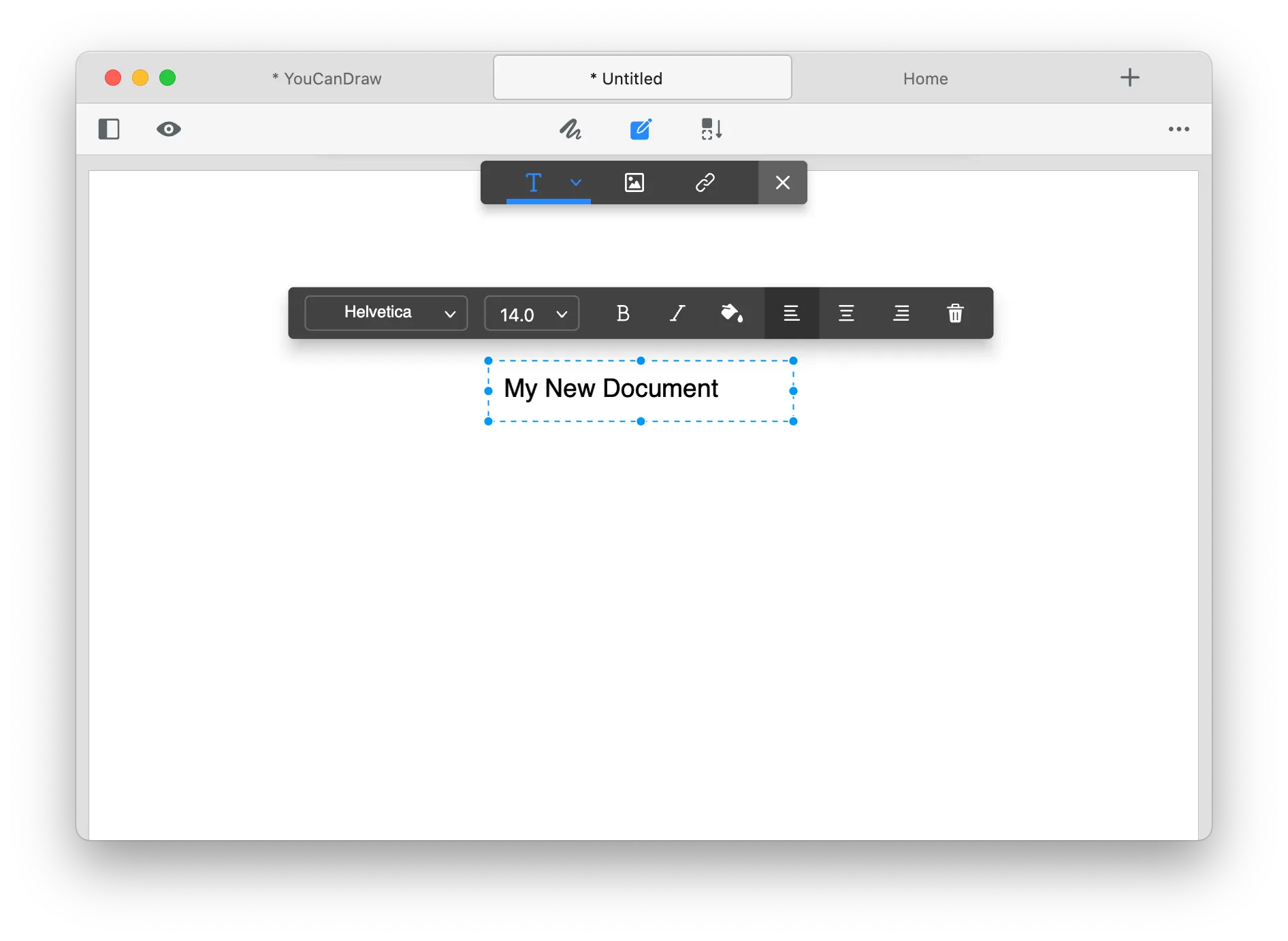
Build a PDF from images, text files or the clipboard — or start from a blank page and add text and images yourself, like writing a Word document.
01 / 01
You can create a new PDF document from images, text files and clipboard. Or you can create a blank PDF document, then insert text and images by youself, just like editing a Word document.
Try GoodPDFTo create PDF documents from scratch, GoodPDF opens a true blank page for editing as soon as you select the new file option. There is no intermediary step or online template selection. The interface provides familiar page dimensions and margin settings, directly matching standard print sizes. When you create PDF files this way, the new document is stored on your local filesystem as soon as you save, and every edit is applied directly to the PDF structure.
Because GoodPDF includes its rendering and editing engine within the application itself, every time you create PDF projects, the work takes place entirely on your computer. There are no upload processes or browser windows involved. The blank page acts as a canvas within the desktop interface, allowing you to place text boxes, shapes, and images directly before finalizing and saving your file.
GoodPDF allows you to create PDF files by assembling images of various formats. This is handled using the 'New from Images' function, which prompts you to select one or several image files from your system. As you create PDF documents through this method, each image becomes an individual page, presented in the order you select or drag to arrange.
The process to create PDF packages from images does not require temporary file conversions. Images are embedded in the PDF structure using the original quality, with page dimensions set to match the image size or a user-selected setting. Because GoodPDF never relies on conversion to or from other file types, when you create PDF content from images, it retains the original detail and color management provided by your operating system.
The 'New from Text File' workflow allows GoodPDF users to create PDF documents based directly on .txt files present on disk. You can select a plain text file, after which the text appears formatted on new PDF pages with selectable font and page size options. Since you create PDF content in this manner entirely through the app’s local engine, there is no uploading or intermediate format conversion.
As you create PDF documents from text files, GoodPDF preserves line breaks and spacing faithfully, translating them into standard PDF layout conventions. You can configure font size, face, and margins during setup or adjust these configurations later using the edit tool. At all times, the text remains fully editable within the application.
To create PDF photo portfolios, start with the 'New from Images' tool under the main menu. After selecting your photos from the file dialog, GoodPDF shows thumbnails of each image. You may drag to reorder or remove entries before finalizing. When you make the file collections like this, you can set page sizes to standard formats or have them automatically fit each image.
Next, tap 'Create', and GoodPDF assembles a new PDF, one photo per page. You can insert additional images later, annotate, or add a cover page using the document's editing options. Because the app maintains native rendering, as you build the document portfolios, your images keep their resolution and color profile, with no cloud compression involved.
Many PDF tools require you to upload files to a web server, or they offer to convert content through intermediary formats such as Word or images before creating the final document. These detours can introduce unwanted format changes or limit the ability to create PDF documents that precisely replicate your intended layout and fonts.
When you produce the file documents with GoodPDF, there is no dependency on external services or temporary conversions. The editing engine applies changes directly to the PDF format, and font, size, and opacity are measured against the existing content—whether starting from text or building from images. This approach avoids the mismatches and format shifts that may occur with traditional web-based solutions.
When you create PDF files using GoodPDF, a panel allows adjustment of document properties before saving. These options include custom page dimensions, margin settings, background color, and metadata such as title and author. If you begin with a text file, you can adjust font face and point size, ensuring your start a new document workflow results in proper formatting from the outset.
For image-based projects, you may select image fit modes (such as fit-to-page, fill, or original size), and choose whether to center images or apply a background behind them. Every step as you make the file documents is reflected instantly in the app’s preview. You can go back and adjust these parameters at any time before finalizing the file.
Once you create PDF documents using any method in GoodPDF, the file is saved directly to your local disk without requiring a connection to any cloud or web-based service. You may reopen and continue editing the same document at any future time, since GoodPDF both creates and edits PDF files in place. All tools support full undo and redo throughout the process.
If you need to share the file, simply use your standard system file browser to attach or copy the PDF. Because you build the document files within your desktop environment, there is no extra export step or need to download a processed document. Edits made later retain consistent text rendering, matching the original font, size, and opacity for seamless document integrity.